Your wallet simulator on iPhone from the dashboard
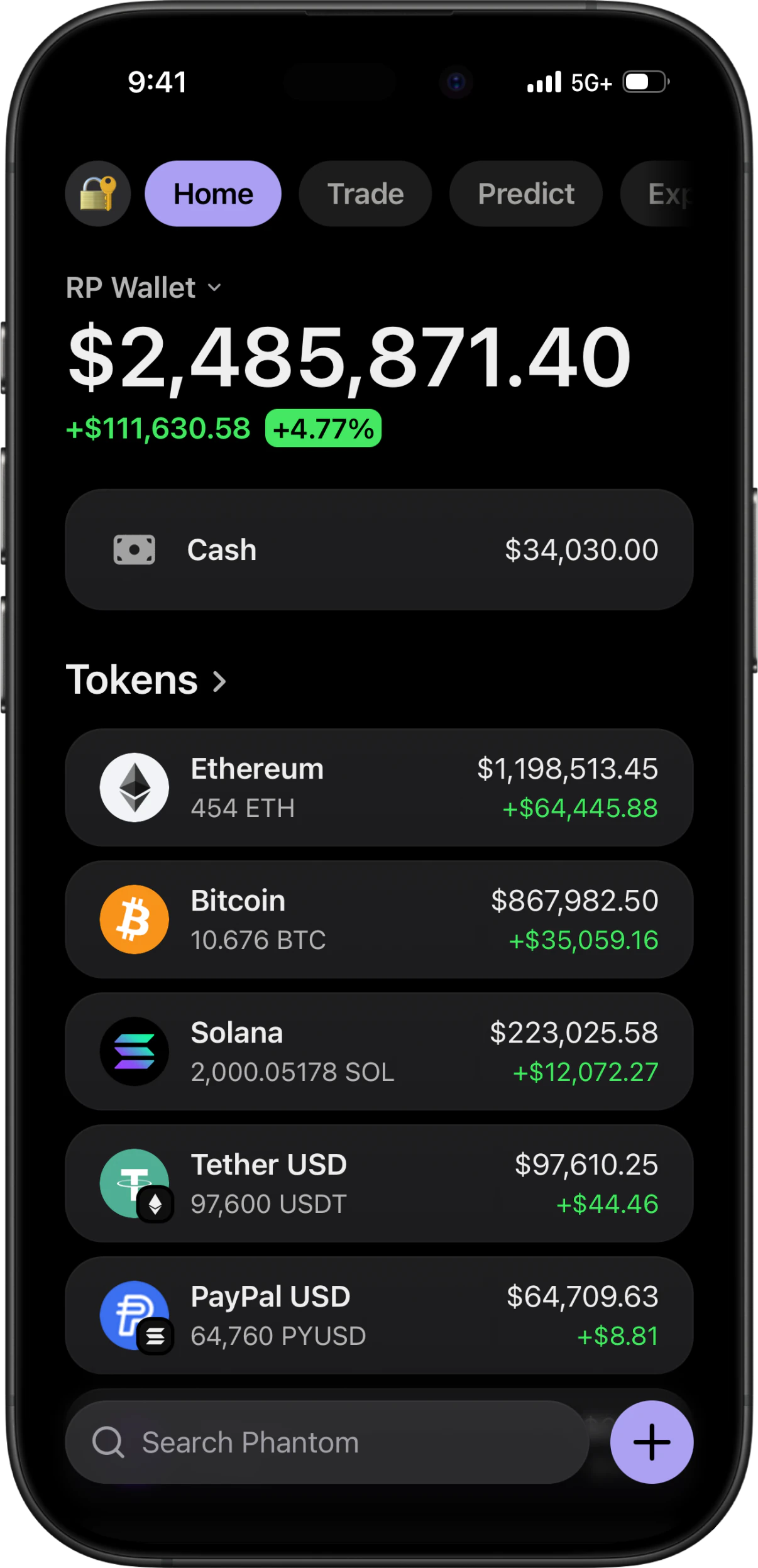
Start in the RPWallet dashboard, choose an app, and install that app's page. Each wallet has its own launch destination, so the page you add to your Home Screen matters.
The short answer
Open the RPWallet dashboard in Safari and activate your license. Tap Install or Open on your chosen app, wait for its page to load, then use Safari's Share menu to add it to your Home Screen. Enable Open as Web App if shown, confirm Add, and launch the new icon.
Before you start
- Your iPhone, Safari, and an internet connection for activation and the first launch.
- An active RPWallet license key from the payment confirmation page, or the delivery email if you supplied an email address.
- The specific wallet you want to install, selected from your dashboard's Apps section.
From dashboard to Home Screen
Use a normal Safari tab for this walkthrough. If a link opens inside a messaging app, open it in Safari first.
Activate in the dashboard
DashboardVisit rpwallet.app/dashboard in Safari. Enter your license key if asked and wait for the Apps section. If your session is already active, continue with the app you want to use.
Open the selected wallet
Install / OpenTap the app's Install or Open button. Let the wallet finish loading before continuing. Adding the Hub homepage instead would create a shortcut to the Hub, not to this wallet.
Add the wallet page to your Home Screen
Add to Home ScreenOpen Safari's Share menu, choose Add to Home Screen, enable Open as Web App if that option appears, and tap Add. The Share button's location depends on your Safari layout.
Check the new icon
Launch the icon and confirm it opens the selected wallet. Follow any activation prompt shown by the app. Return to the dashboard for its setup guide before customizing balances or recording a scene.
If something goes wrong
- Add to Home Screen is missing.
- In Safari's Share sheet, scroll to Edit Actions and look for Add to Home Screen. If you are inside another app's browser, move the page to Safari and retry.
- The icon opens the Hub instead of my wallet.
- Return to the dashboard and open the wallet first. Add that destination to your Home Screen. Check the new icon works before removing your old shortcut.
- The installed icon opens a regular browser page.
- Check that you added the wallet's page and enabled Open as Web App when offered. See Apple's linked instructions for your Safari version; avoid deleting app data just to troubleshoot a shortcut.
- Activation does not complete.
- Return to the dashboard in a normal Safari tab, check your license status and connection, then open the wallet again. Do not clear site data as a first step: your scene settings may be stored locally.
Install on iPhone FAQ
Do I need an IPA, TestFlight, or a computer?
No. This is the web-app installation route supplied by the RPWallet dashboard. The steps above happen on your iPhone.
Do I add RPWallet once for all the apps?
Open and add each app you want from its own destination. The dashboard is the place to activate your license and choose which app to launch.
Will deleting and reinstalling preserve my scene?
Do not rely on reinstalling to preserve local settings. Record your scene configuration or use an available export option before removing an app or clearing its website data.
Next guides
Install on Android
Download an Android app from your RPWallet dashboard, generate its pairing code, and connect it. Includes the browser-install option when offered.
Simulate a hardware wallet
Step-by-step: add a simulated Ledger device, choose the model, install its blockchain apps, set balances that match them, and capture a cold-storage scene where the device and the portfolio agree with each other.
Choose a LARP wallet for your scene
Choose between Phantom, Trust Wallet, Exodus and Ledger Live-style LARP wallets by planning your scene, assets and on-screen interactions.
Every RPWallet guide
Setup, balances and tokens, and content — the full index.
Keep reading
Choose your first app
No download, no seed phrase, no real funds. Installs to your home screen on iOS and Android in about two minutes.