Set your demo balances with the right units
A token quantity, a cash balance, and a dollar-value override are different inputs. Start with the selected app's setup guide, then check the saved result on its normal portfolio screen.
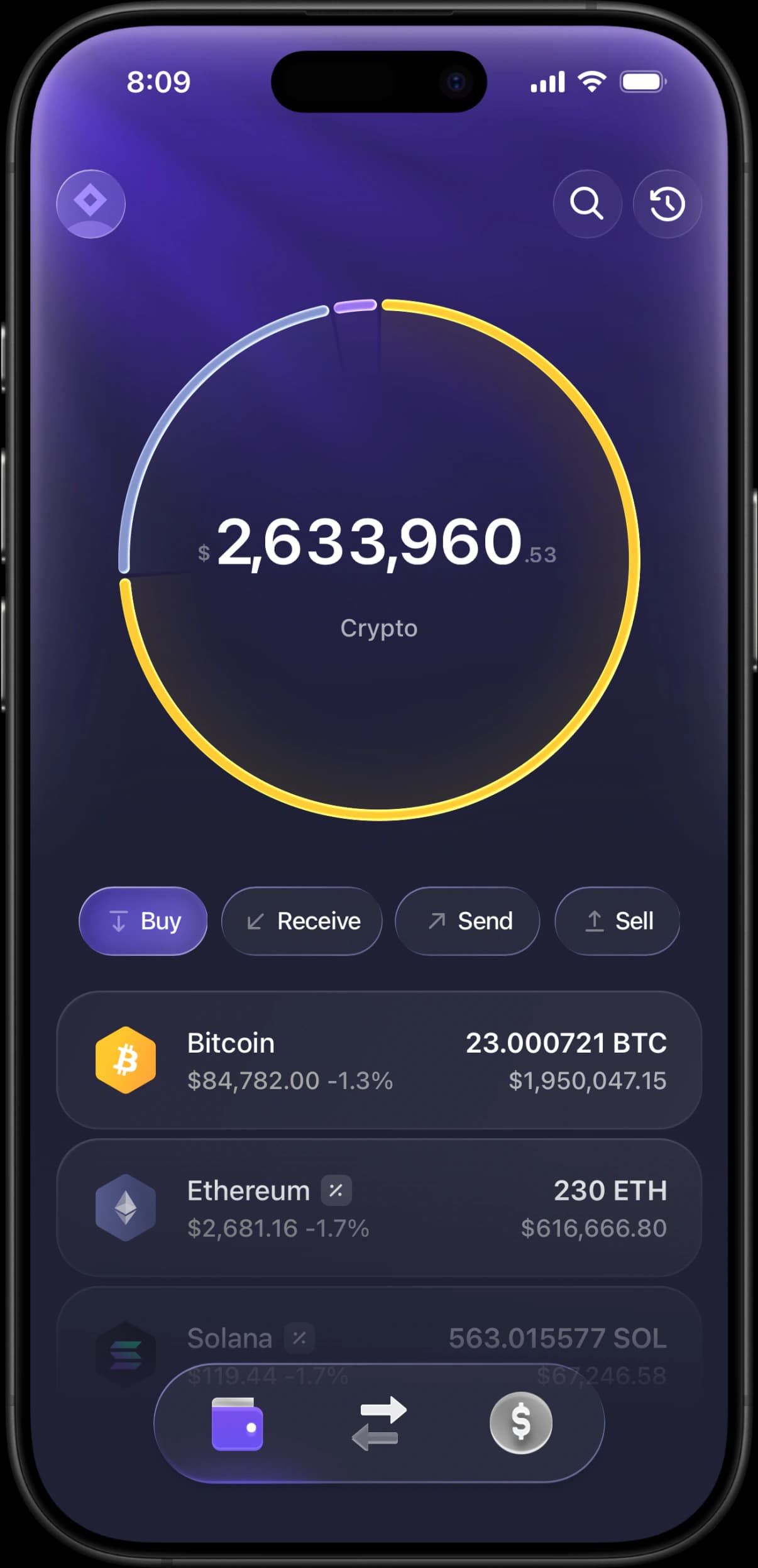
The short answer
Open your app's balance editor using its dashboard guide. Select the asset and network, read the field's units, enter the intended demo amount, and save. Return to the portfolio to check the row, display currency, and total. A live-priced crypto position can change in fiat value even when its saved quantity stays the same.
Before you start
- An activated app and its setup guide, available from your dashboard.
- The intended asset, network, units, and approximate portfolio allocation for your scene.
- An internet connection if you want to verify live-priced values.
Check the input, then the result
Editor names and balance fields vary between apps. Use the matching app guide for the exact entry point.
Open the app-specific setup guide
DashboardFind your app in the dashboard and open its guide. Use the documented balance editor: different apps expose token holdings, portfolio assets, or cash-value controls rather than one universal Manage Tokens screen.
Choose the holding and read its units
Check both the asset and network. A quantity field expects units such as SOL or ETH; a field labeled in USD expects a dollar value. Banking account balances use the selected account currency. Do not assume every crypto-related field expects token units.
Enter and save the demo amount
Save / Save changesFor a quantity-based position, divide the desired approximate value by the displayed price to estimate the quantity. For a cash or value field, enter the amount in its labeled currency. Use the editor's Save or Save changes control and wait for it to finish.
Check visibility and the portfolio total
Return to the ordinary portfolio screen. Check the row is enabled where visibility controls exist, verify the display currency, and compare the asset value with the headline total. A zero balance and a hidden asset are different states.
Review once more before recording
Reopen the screen to confirm your changes persisted. If live quotes have moved, the fiat value may have changed without any edit to the quantity. Review related cash, crypto, and activity screens so the scene remains consistent.
If something goes wrong
- The total is much larger or smaller than expected.
- Check whether you entered a dollar value into a quantity field, or a quantity into a currency field. Also verify the selected account currency and asset network.
- The dollar total moved after saving.
- Compare the saved quantity first. A live quote can change its fiat value. An animation or jitter setting is separate from the quote feed and should not be treated as a universal price lock.
- The asset is missing or still shows zero.
- Reopen the editor to verify the save, account, and network. Check its visibility setting if present. Use the app-specific guide for supported assets and custom-token setup.
- Changing the balance did not add a transaction.
- Balances and activity entries can be separate controls. Check the app guide for transaction editing rather than assuming a balance edit generates matching history.
Set custom balances FAQ
Can I enter fractional quantities?
Use the precision accepted by the selected asset's field. Check the saved row after entering a fraction; the portfolio can round its displayed quantity or value.
Can I guarantee an exact dollar total?
A quantity multiplied by a live price changes when the price changes. Use the displayed quote to estimate your target, then check the result at capture time. Available value overrides differ by app.
Does editing a demo balance move money?
No. These are simulator settings for fictional scenes and demonstrations. They are not deposits, on-chain holdings, or evidence of funds.
Next guides
Understand live prices and demo balances
Check token quantities, live prices and display currency before recording a simulated portfolio. Learn why the total can change between takes.
Import a custom token
Step-by-step: search a token by name or symbol, import it into the wallet, upload your own logo when there is no listed image, and remove it afterwards. For memecoins, pre-launch tokens and anything with no market listing.
Mirror a public address
Step-by-step: paste any public Solana address into the Watch Address tab and have the simulator populate its token list from that address's real, publicly visible holdings — with no connection, no signature and no key of any kind.
Every RPWallet guide
Setup, balances and tokens, and content — the full index.
Keep reading
Build your demo portfolio
No download, no seed phrase, no real funds. Installs to your home screen on iOS and Android in about two minutes.