Plan the scene. Make every take count.
A useful wallet scene has a clear action, readable screens and numbers that stay consistent between shots. This is the planning step before you start the screen recorder.
The short answer
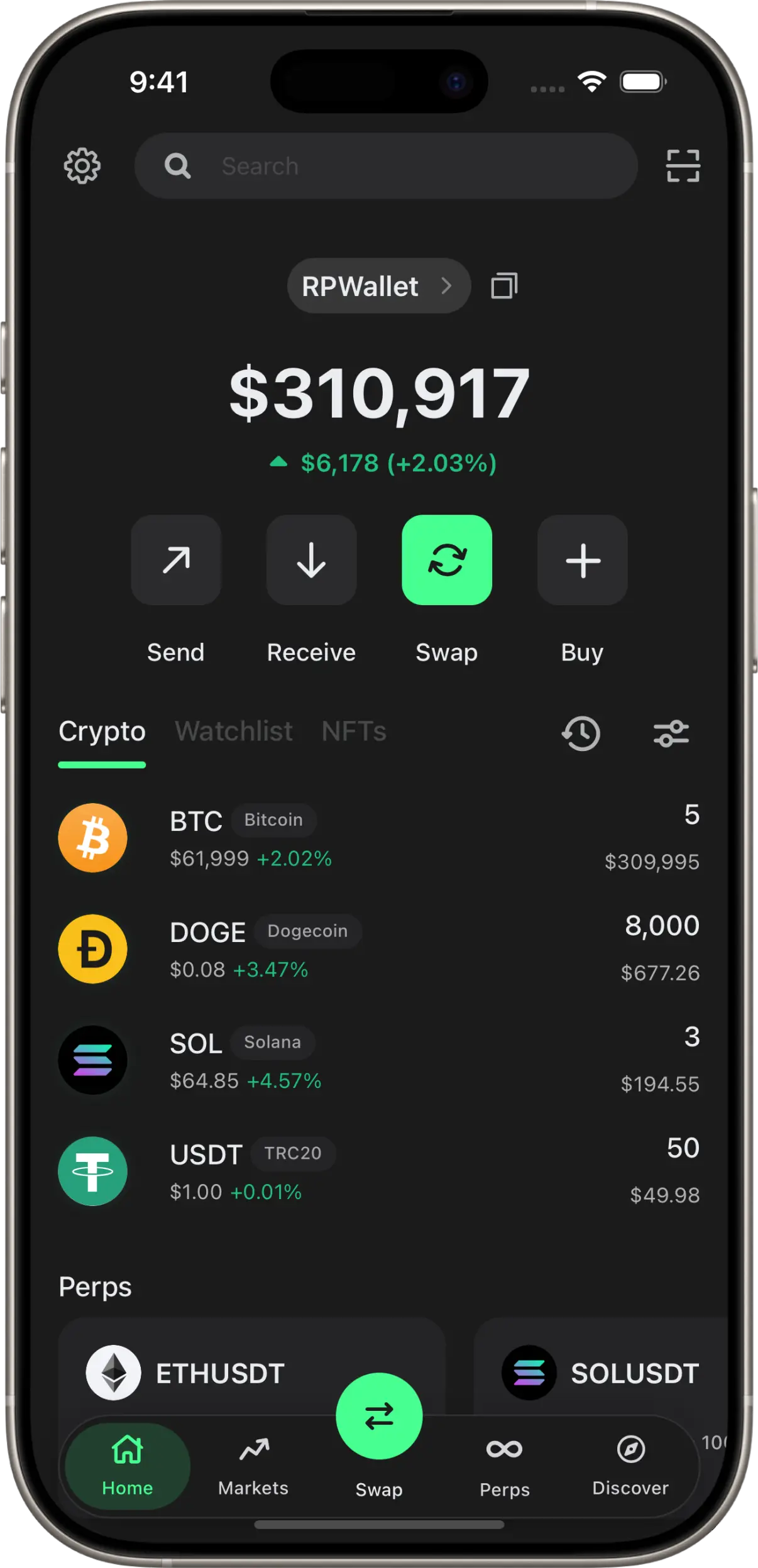
Write a three-shot sequence: establish the fictional portfolio, show one interaction, then show the outcome. Note the starting token quantities, rehearse the sequence and review a test recording. Add an explicit simulation label in your video editor so a shared clip cannot be mistaken for proof of actual funds.
Before you start
- RPWallet access and a chosen wallet interface.
- A place to note your fictional starting balances and shot order.
- A phone screen recorder and an editor that can add a visible text label.
- A fictional script that does not present the screen as real holdings or a real payment.
A simple plan for your first take
Prepare the sequence once, then use the same notes when you need another take.
Define the opening shot
Choose the portfolio or account screen that introduces the scene. Write down the token names and quantities you want to show. If a fiat total matters to the script, allow for market-price movement when deciding when to record.
Choose one on-screen action
Open an asset, walk through a simulated transfer or inspect the allocation. Keep the interaction tied to the script. Use the simulator's feature guide to check that the chosen interface supports the path you intend to show.
Record your continuity notes
Note the starting amounts, selected asset and intended ending screen. After rehearsal, restore the starting state using the available balance controls where needed. Do not assume the app automatically resets between takes.
Make a short rehearsal recording
Capture the full sequence once and review it at the final viewing size. Check that text stays readable, personal notifications are out of frame and your taps do not move too quickly for the explanation.
Label and review the finished scene
Add a visible label such as Simulated wallet or Fictional portfolio in your editor. Keep it inside the crop used by the final platform. Watch the exported clip from beginning to end and confirm that no simulated amount or transaction is presented as real.
If something goes wrong
- The total differs between the opening and pickup shots.
- Check both the token quantities and current market prices. Record related shots close together where possible, and review the sequence before cutting between takes.
- A rehearsal changed the portfolio.
- Use your continuity notes to restore the starting values before the next take. Simulated interactions can update the screen state; reopening the app is not a substitute for checking it.
- The simulation label disappears in the platform crop.
- Move the label inward in your video editor and review the exact exported aspect ratio. A caption outside the video is easy to lose when the clip is shared.
A planned example, not financial evidence
The numbers and activity in the scene belong to a fictional production. Do not use a simulated portfolio to obtain money, goods, credit or an investment, or to present a payment as completed.
Plan a LARP wallet video FAQ
Is this different from the screen-recording guide?
Yes. This guide plans the story, starting state and continuity between takes. The recording guide covers the phone and capture workflow once that plan is ready.
Does RPWallet add the video label for me?
This workflow uses your video editor to add and position the label. Check the final export yourself; do not assume an on-screen disclosure survives a crop or edit.
Can I reuse the same setup for another take?
Use your continuity notes to restore the starting values and selected screens. Recheck the displayed totals before each take because simulated interactions and market prices may have changed them.
Next guides
Choose a LARP wallet for your scene
Choose between Phantom, Trust Wallet, Exodus and Ledger Live-style LARP wallets by planning your scene, assets and on-screen interactions.
How to larp a crypto wallet
The full walkthrough: pick the wallet interface that fits your story, get it on your phone, configure a clearly disclosed simulated portfolio, add supporting activity, and check the finished capture. Covers Phantom, Trust Wallet, Exodus and Ledger Live.
Install on iPhone
Step-by-step: install RPWallet on an iPhone or iPad as a Progressive Web App straight from Safari. No App Store listing, nothing to sideload, no TestFlight, no jailbreak — and no Safari address bar in your screenshots.
Every RPWallet guide
Setup, balances and tokens, and content — the full index.
Keep reading
Browse LARP wallets
Choose a wallet interface for the scene you are planning.
Choose your interface
Match the story to Phantom, Trust, Exodus or Ledger Live-style screens.
Prepare the balances
Set the token quantities your fictional sequence starts with.
Record the screen
The phone setup and capture steps after your shot list is ready.
Bring your next scene to life.
No download, no seed phrase, no real funds. Installs to your home screen on iOS and Android in about two minutes.