How to import a custom token including your own
The built-in list covers the majors. Everything else — a memecoin from last week, a project token with no listing, your own pre-launch ticker — gets imported by search, and you can supply your own logo when there is no image to pull.
The short answer
To import a custom token into RPWallet: open Manage Tokens, search the token by name or symbol, and tap the plus icon next to the result to import it. An imported successfully confirmation appears and the token joins the Balances tab, where you set its amount. If the token has no listed image, tap the image slot on its row to upload your own logo; a reset control restores the default. Custom tokens can be removed individually at any time.
Before you start
- RPWallet installed and activated.
- The token's name or symbol. For a token with no listing, have a square logo image ready — 512×512 PNG with a transparent background reads best.
- A connection, so the search can resolve token metadata.
Importing a token
Search resolves listed tokens automatically. The upload path exists for everything search cannot find an image for.
Open Manage Tokens and search
Search token name or symbol…From the token list, open Manage Tokens and type the token's name or symbol into the search field. Results resolve as you type. Searching by symbol is faster, but names disambiguate better when a ticker is shared by several projects — and popular tickers usually are.
Import the one you want
+Tap the plus icon on the correct result. A confirmation naming the token appears once it is in. Check the name against the symbol before you commit: recycled tickers are common, and importing the wrong one is the most likely mistake here.
Give it a logo if it has none
Upload token imageTokens with no listed image import with a placeholder. Tap the image slot on the token's row to upload your own — a square PNG on a transparent background matches how the other rows render. A reset control puts the default back if you change your mind.
Set its balance
BalancesSwitch to the Balances tab, find the newly imported token, and enter the quantity required for your mockup or lesson. The displayed fiat value is calculated from the available market price; unpriced tokens show a quantity without a fiat figure.
Save and check the row
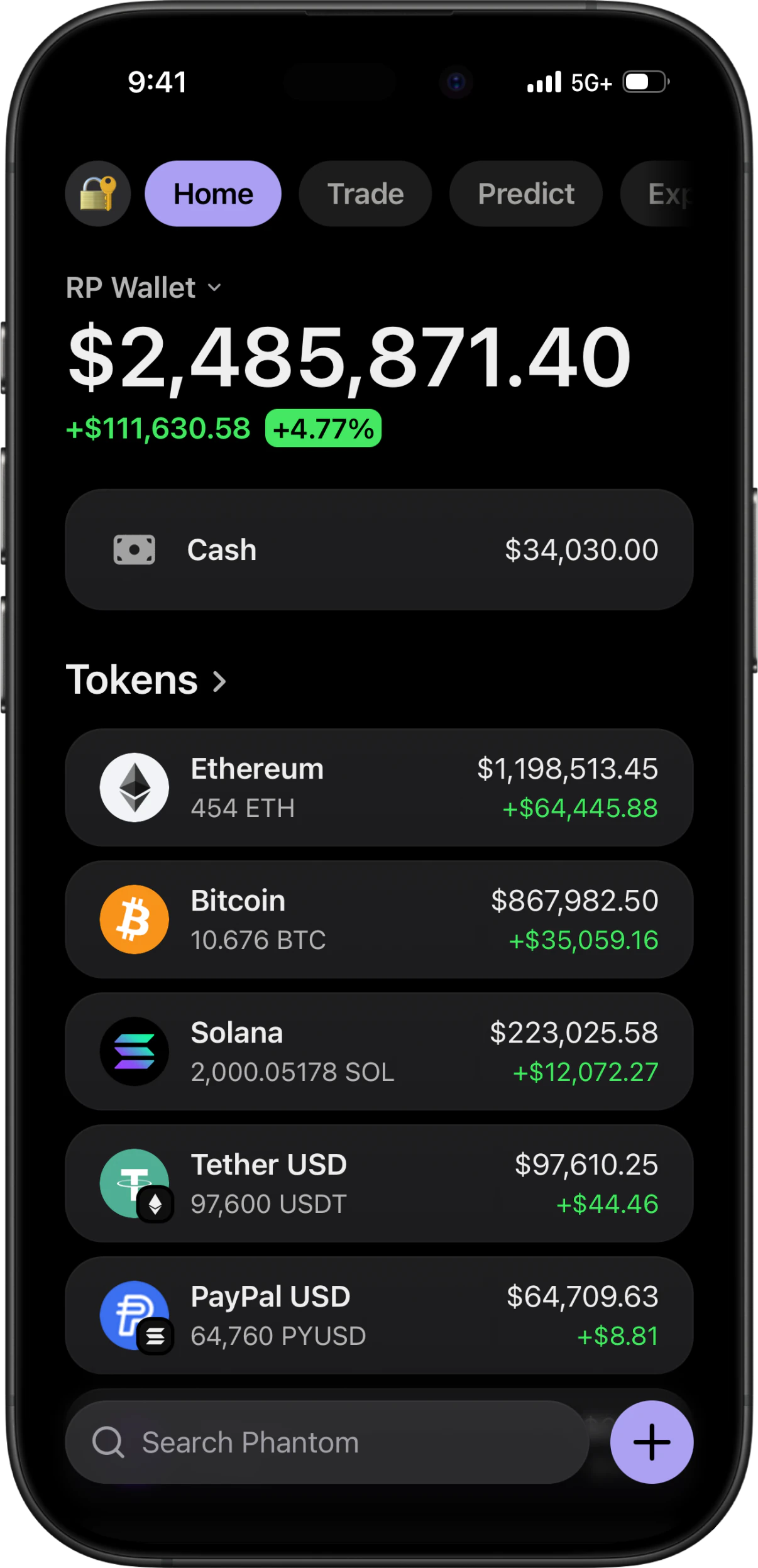
SaveTap Save and close the screen. The token now appears in the wallet's token list with your logo, your quantity and a fiat value derived from its market price. If it has no market price, the row shows the quantity without a fiat figure — which is exactly how a real wallet displays an unpriced token.
If something goes wrong
- Search returns nothing for my token.
- Try the symbol instead of the name, and vice versa. Very new or unlisted tokens may have no metadata to resolve. Do not relabel another real asset as the missing token; wait for its metadata to become available or use a clearly fictional, disclosed placeholder in an internal mockup.
- I imported the wrong token with the right ticker.
- Recycled tickers are common. Remove the custom token with the delete control on its row and search again, this time by full project name rather than symbol.
- The logo I uploaded looks stretched or has a white box behind it.
- Upload a square image — non-square images are fitted to a square slot. The white box is an opaque background in the source file; use a PNG with real transparency rather than a JPEG.
- The token shows a quantity but no dollar value.
- There is no market price to resolve, which is correct behaviour for an unlisted token and matches what a real wallet shows. If you need a fiat figure on screen, use a token that has a listing.
- The custom token disappeared after I reinstalled.
- Custom tokens and uploaded images are stored on the device. Reinstalling clears them, so they need importing again — the search and upload take under a minute per token.
Use branding you are allowed to use
For a real project, use the correct token name, symbol, and an authorized logo. For a fictional or pre-launch asset, label the surrounding mockup as simulated and avoid presenting the screen as evidence that the token is listed or held on-chain.
Using this for a pre-launch project
Founders use the import flow to show a token in a wallet before it exists — a wallet screen for a pitch deck, a walkthrough of what holders will see, a preview of the token row with the real logo. That is a legitimate mockup use, and it is worth saying on the slide that the screen is a simulation, for the same reason you would label any other mockup.
Import a custom token FAQ
Can I import a token that is not listed anywhere?
Yes. Import the closest search result and replace its logo with your own image. The row displays your logo and quantity; with no market listing there is no fiat value, which is exactly how a real wallet renders an unpriced token.
What image size should I upload?
A square PNG with a transparent background, 512×512 or larger. Non-square images are fitted to a square slot and can look stretched.
How many custom tokens can I add?
There is no practical limit. For a clear demo, keep only the assets the audience needs to understand the scenario.
Does importing a token touch a blockchain?
No. Importing resolves display metadata — a name, a symbol, an image, a price. Nothing is deployed, no contract is called, no wallet is connected and no transaction is signed.
Can I remove a custom token later?
Yes. Each custom token has a delete control on its row in Manage Tokens. Removing it takes the row and its uploaded image out of the wallet.
How do I demo a memecoin that just launched?
Search it by name or symbol and import it, then upload an authorized logo if there is no listed image. If the token has no market listing, the simulator cannot show a sourced fiat price. Label the result as a simulated or pre-launch mockup and do not present it as evidence of holdings or listing status.
Next guides
Understand live prices and demo balances
Check token quantities, live prices and display currency before recording a simulated portfolio. Learn why the total can change between takes.
Set custom balances
Set a demo balance using the right units, save it, and check the portfolio total. Learn why asset quantity, cash value, visibility, and live prices differ.
Mirror a public address
Step-by-step: paste any public Solana address into the Watch Address tab and have the simulator populate its token list from that address's real, publicly visible holdings — with no connection, no signature and no key of any kind.
Every RPWallet guide
Setup, balances and tokens, and content — the full index.
Keep reading
Fake Phantom Wallet
How to get a Phantom-style wallet on iPhone or Android with no APK, IPA, or app-store download.
LARP Wallet App
How to LARP a crypto wallet on iPhone or Android: pick the interface, set the balance, stay in character.
Ledger Live Simulator
Hardware-wallet screens with a simulated device behind them: pick a model, install its blockchain apps, set the balance.
Wallet Screenshot Generator
Generate Phantom, Trust Wallet and Exodus screenshots without exposing a real address or balance.
Trust Wallet Simulator: How to Create Realistic Trust Wallet Screenshots and Demos
A practical guide to creating Trust Wallet-style screenshots, demos, and video content using wallet simulation tools.
Fake Trust Wallet App & Simulator: Best Practices for Demos and Content
Everything you need to know about simulating Trust Wallet balances, multi-chain tokens, and transaction activity safely.
Import your own token
No download, no seed phrase, no real funds. Installs to your home screen on iOS and Android in about two minutes.