A store dashboard. A story behind the numbers.
A useful e-commerce demo connects the overview to an individual order. Keep the reporting period and sample records consistent so the recording explains a workflow instead of showing unrelated totals.
The short answer
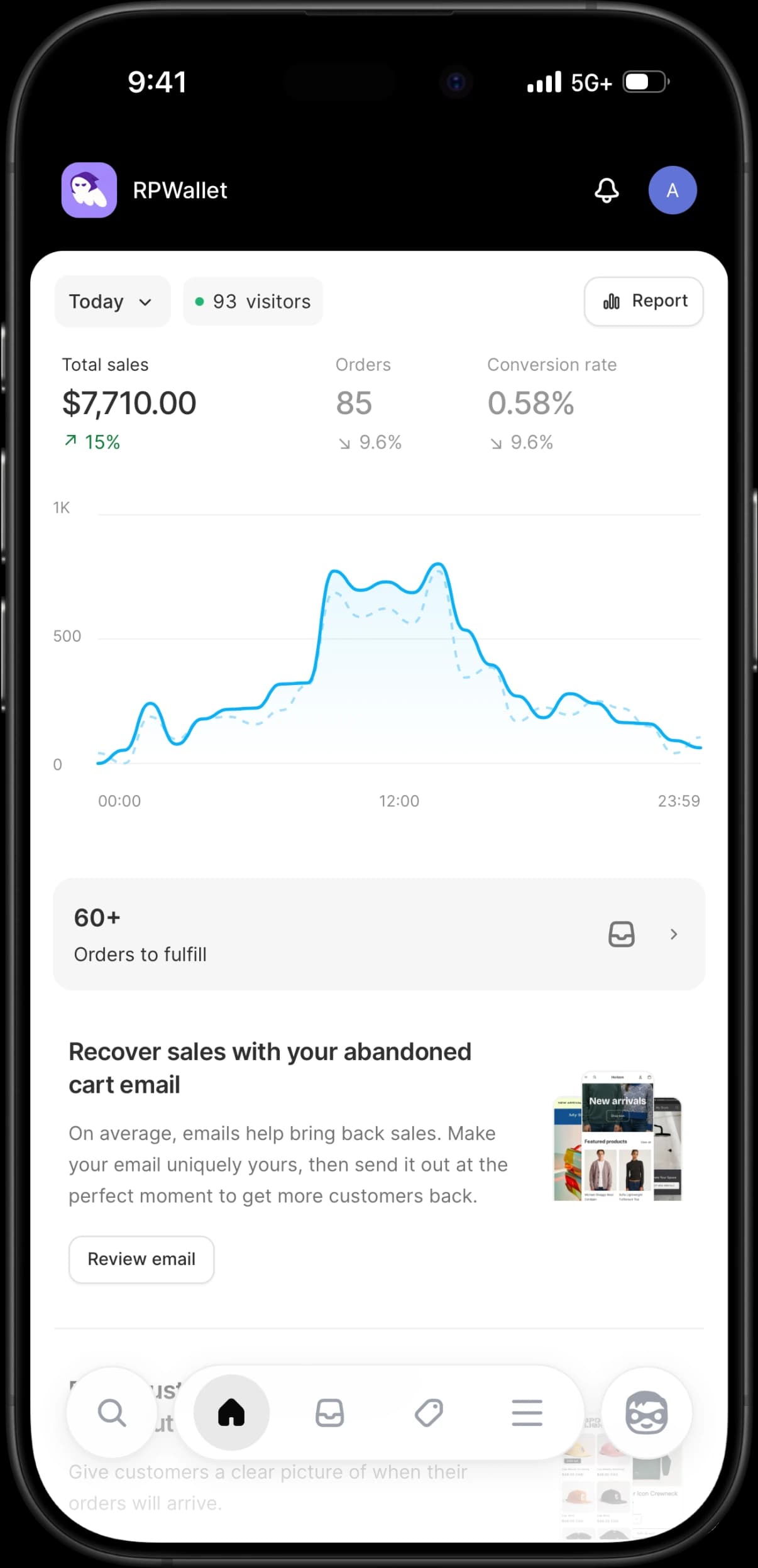
Choose one reporting period, review Total sales and Orders on Home, then open an order from that same period. Check the product, quantity and payment status before recording the sequence. RPWallet's Shopify-style app uses a local fictional store; it is not connected to a real Shopify merchant account or payment processor.
Before you start
- An activated Shopify-style RPWallet app on the device you will record.
- A prepared sample store with fictional products and customers.
- A chosen reporting period and a three-shot plan: overview, order list, order detail.
Connect the overview to an order
Rehearse with the same store and date range you will use in the recording.
Choose the reporting period on Home
TodaySelect Today for a one-day scene, or choose the period your script describes. Note the store currency and period before you read a sales total aloud. A change of period changes which sample orders the report includes.
Read the dashboard metrics together
Total salesCheck Total sales, Orders and Conversion rate as a set. Conversion is tied to orders and sessions in this local model; the live visitor count describes something different. If your script says orders increased, make sure the relevant order count supports the line.
Open the matching order list
OrdersSwitch to Orders, keep the same date range and choose All when you want the full list. An Unfulfilled or Fulfilled filter narrows the records shown. Decide which order the audience will follow before starting the recorder.
Review the selected order
Open the order and check its date, product, quantity, amount, payment state and fulfillment state. A Paid order is not automatically Fulfilled. Use fictional names and contact details so the recording does not expose a real customer's information.
Rehearse, then capture the sequence
Return to Home and record the overview, list and detail in that order. Review the exported clip for consistent currency and date labels. Keep any simulation disclosure within the final crop. Use the member setup guide if your sample store needs configuration changes before another take.
If something goes wrong
- The order list looks smaller than expected.
- Check both the date range and fulfillment filter. A list restricted to today's unfulfilled orders is not the same view as every order in the store. Do not reset your data to fix a filter mismatch.
- A comparison percentage is missing or unexpected.
- Check the selected period and the previous period's sample figures. A zero previous value may have no meaningful percentage comparison. A different reporting window can also include different orders.
- The store differs on another device.
- The Shopify demo store and uploaded images are local to the device. Reopening a different device is not a way to restore the same setup. Keep the configured recording device and avoid clearing its site data or resetting the sample store.
Plan a demo store dashboard walkthrough FAQ
Will this change a real Shopify store?
No. This is RPWallet's local store simulation. It does not connect to a merchant account, process an actual order or collect a customer payment.
Are live visitors the same as sessions?
No. The live count and reporting-period sessions represent different values. Do not substitute the live count for sessions when explaining the dashboard's conversion figure.
Can a demo order prove that a sale happened?
No. A fictional order is a prop for a walkthrough or recording, not evidence of revenue, fulfillment or a real payment.
Next guides
Prepare a multi-currency wallet demo
Plan a Revolut-style recording with separate USD, EUR and GBP accounts. Check currency labels, account balances and crypto units between shots.
Record wallet screen video
Step-by-step: configure a simulated wallet, protect personal notifications, record clean vertical footage, and label the finished clip clearly for demos, education, or entertainment.
Choose a LARP wallet for your scene
Choose between Phantom, Trust Wallet, Exodus and Ledger Live-style LARP wallets by planning your scene, assets and on-screen interactions.
Every RPWallet guide
Setup, balances and tokens, and content — the full index.
Keep reading
Plan the shot sequence
Keep a clear opening, interaction and outcome.
Screen-recording workflow
Review readability, framing and the final export.
Create fictional screen visuals
Choose still images or a screen walkthrough for your project.
Store setup for members
Sign in for the local store configurator instructions.
Give your next demo a clear sequence.
No download, no seed phrase, no real funds. Installs to your home screen on iOS and Android in about two minutes.