Looking for a Ledger Wallet IPA? Skip the sideload.
If you searched for a Ledger wallet IPA to film a hardware-wallet walkthrough, start with the scene you need. RPWallet provides simulated Ledger Live-style devices, accounts and holdings in an iPhone web app, with no IPA installation or physical wallet pairing.
Explore the Ledger Live simulator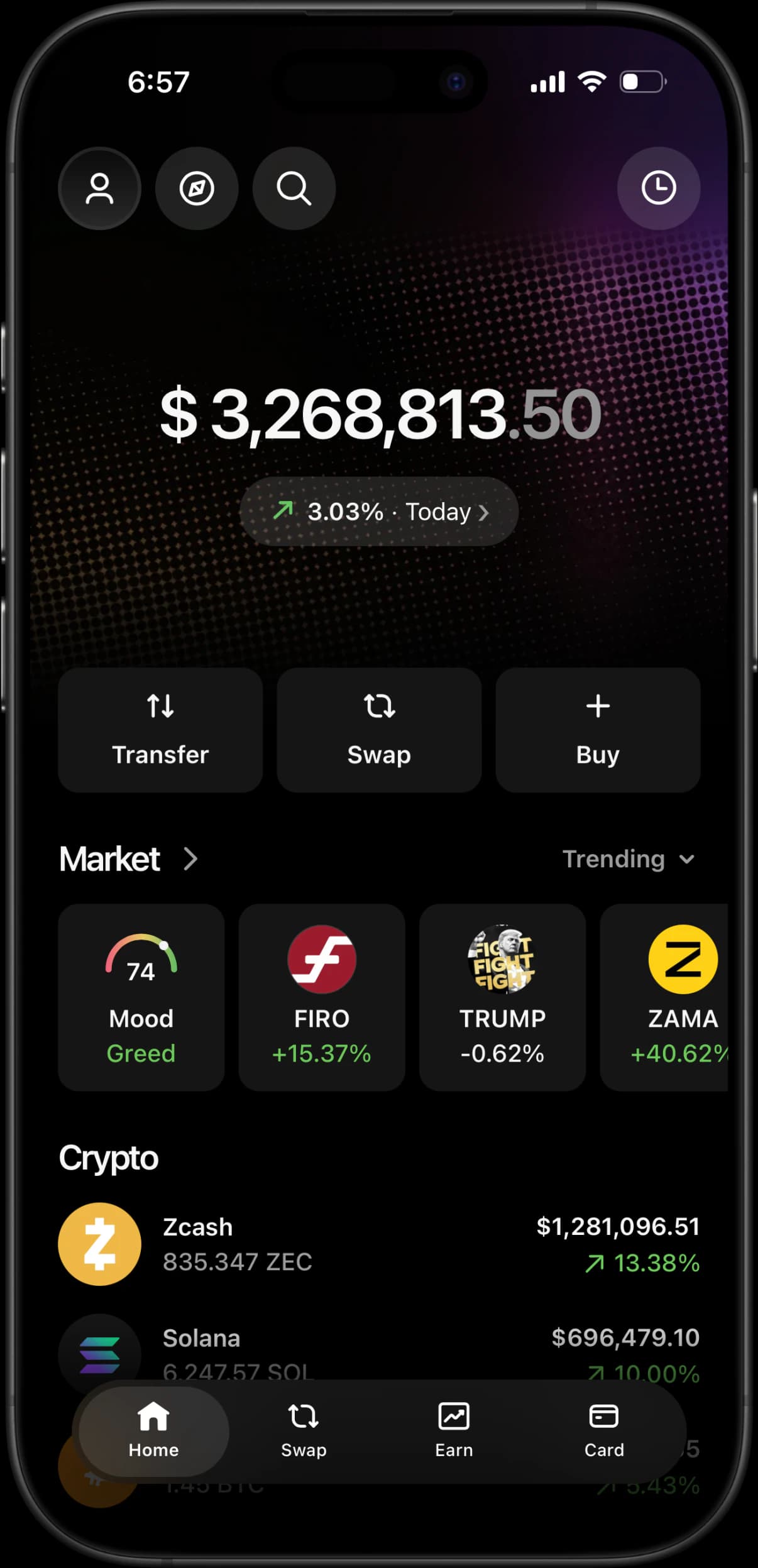
A wallet demo, without the IPA
RPWallet's Ledger Live-style simulator installs through Safari and your Home Screen. It is not Ledger's official software and does not connect to a Ledger device. It gives a presenter the companion screens for a disclosed demonstration, without configuring a native IPA or placing real funds in the recording.
Less setup before your first take
An IPA is one installation route. For a simulated wallet scene, a browser-installed app removes the signing workflow.
The sideloading route
Sideloadly uses a Mac or Windows computer and an Apple ID to install an IPA. Free-account signing lasts seven days; its auto-refresh can renew it. A jailbreak is not required.
Sideloadly documentationThe RPWallet route
Install the simulator directly on your iPhone through Safari. No IPA, signing computer or developer certificate is part of this flow. Access follows your RPWallet plan, and online features still need an internet connection.
See the iPhone setup guidePrepare the device before the portfolio
A convincing educational example needs the device, its blockchain apps and its accounts to match. Treat those as parts of the same setup.
Select a simulated device
Choose the model and state in RPWallet's device-management controls. This is a visual demonstration of the companion interface, so Bluetooth pairing and a physical device are not needed.
Match blockchain apps and accounts
Prepare the simulated blockchain apps required by the accounts in your example. Walk between those screens before filming so the portfolio has a consistent device setup behind it.
Explain the security boundary
Use the screens to explain account and portfolio concepts. Real key creation, recovery and physical transaction confirmation need genuine hardware and the manufacturer's instructions; the simulator does not perform them.
From Safari to your Home Screen
Install the wallet app you selected in the dashboard, then open its icon when you are ready to record.
Open your dashboard in Safari
Go to RPWallet on your iPhone and activate your license in the dashboard. Choose the wallet app you want to install.
Add the wallet's own page
Open that app, use Safari's Share menu and choose Add to Home Screen. Enable Open as Web App when the option appears, then tap Add.
Launch and prepare your demo
Open the new Home Screen icon, complete any activation shown and set your fictional holdings. Test a short recording before filming the full scene.
Safari controls vary by iOS version. Apple's Home Screen web-app guide shows the current menu.
Ledger Live on iPhone: your questions
Is a Ledger IPA required for this simulator?
No. RPWallet's iPhone installation uses a web app launched from the Home Screen. You do not need to obtain or sign a Ledger IPA to use these simulated companion screens.
Will RPWallet pair with my Ledger device?
No. Any device shown in RPWallet is simulated. Do not enter recovery words or expect the app to verify or sign a real transaction.
Can I film a cold-storage tutorial without owning the device?
You can demonstrate the simulated companion interface and explain how accounts relate to blockchain apps. Label the demonstration clearly and use real manufacturer materials for any security or recovery instructions.
Where do I get the real Ledger application?
Use Ledger's official website and its verified download links. This page is for RPWallet's separate production tool, not for downloading Ledger software or managing a real hardware wallet.
Ready to build your next scene?
Choose a plan below and prepare your Ledger Live-style demo. RPWallet is an independent simulation tool for disclosed fictional content; it does not hold or transfer real cryptocurrency.